

Browsing Our Catalogue User Guide
Contents
- Using the search functionality
- Using filters and sort options to refine the products you`re seeing
- Special offers
- Accessing Safety Data Sheets (SDS) and Technical Data Sheets (TDS)
- Seeing your agreed pricing online
- Finding details on stock availability
- Finding details about shelf life and expiry dates
- Company Switcher
The Aerospheres website provides several ways to help you quickly find the products you need. Whether you know the exact part number or are exploring a product range, you can browse the catalogue using the navigation menu, search bar, product filters and sorting options.
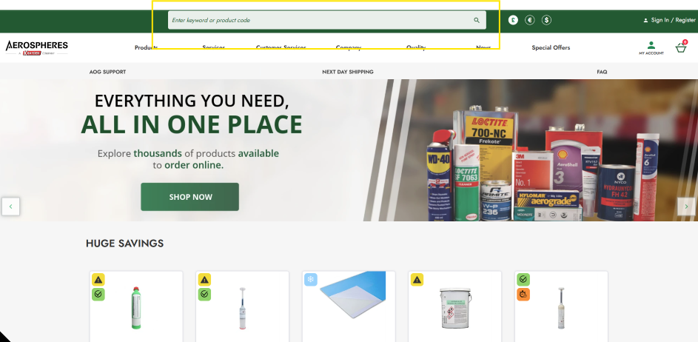
Once you have selected a product, the Product Details page provides additional information, including product specifications, stock availability, technical documentation, shelf life (where applicable) and your agreed pricing when logged into your account.
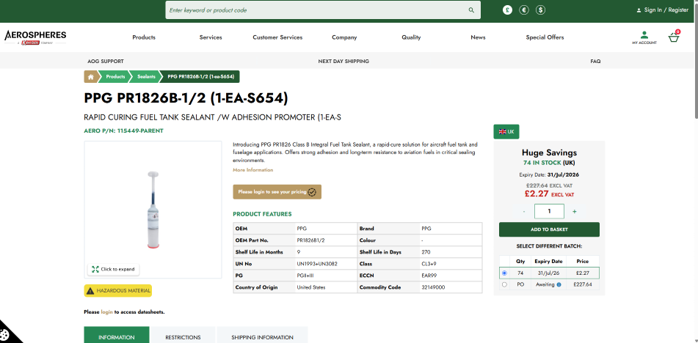
The following sections explain the different features available while browsing the catalogue.
Using the search functionality
The search bar is located at the top of every page on the website. You can search by entering a product name, manufacturer part number or Aerospheres product code.
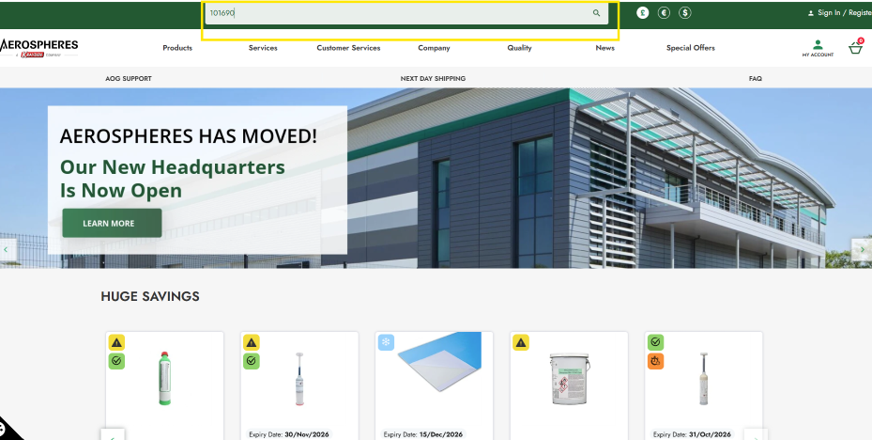
As you type, matching products may be displayed to help you find the item more quickly. Select a suggested product or press Enter to view the full list of search results.
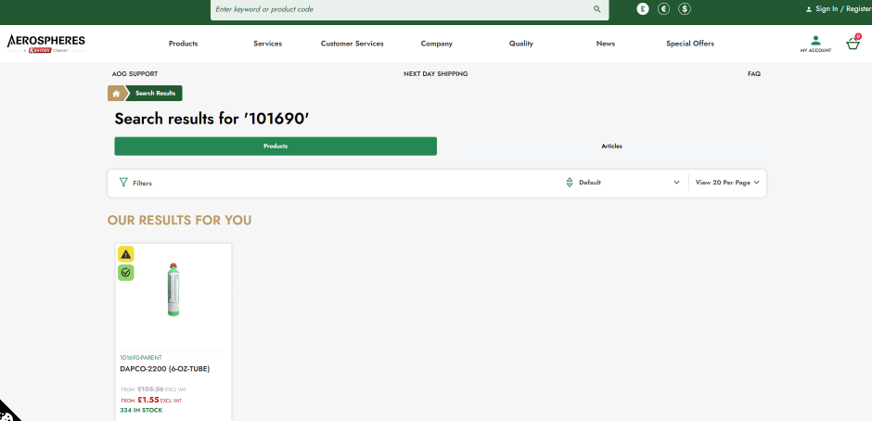
If multiple products match your search, you can use the available filters and sorting options to refine the results.
Using filters and sort options to refine the products you’re seeing
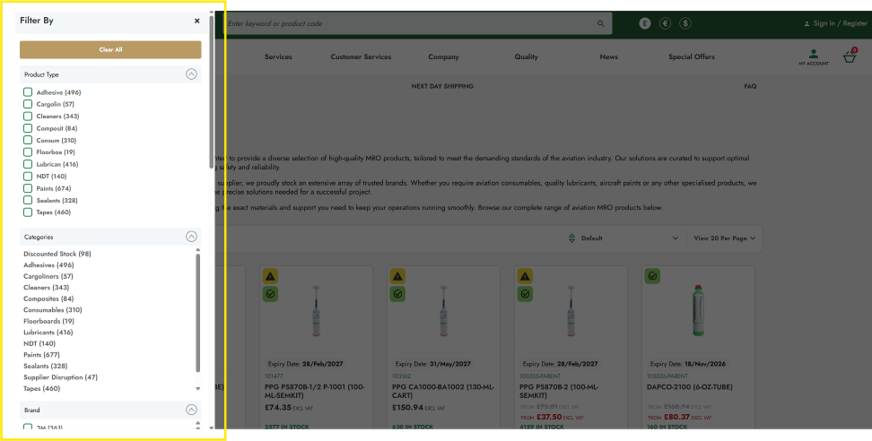
When viewing a product category or search results, you can use the available filters to narrow down the products displayed.
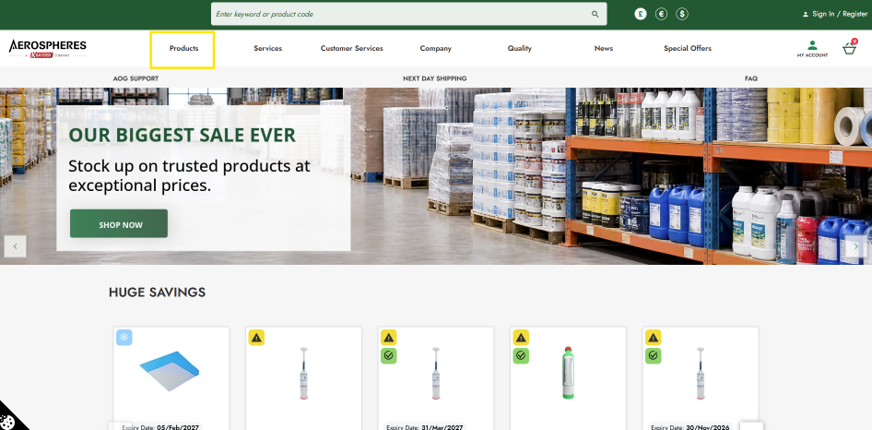
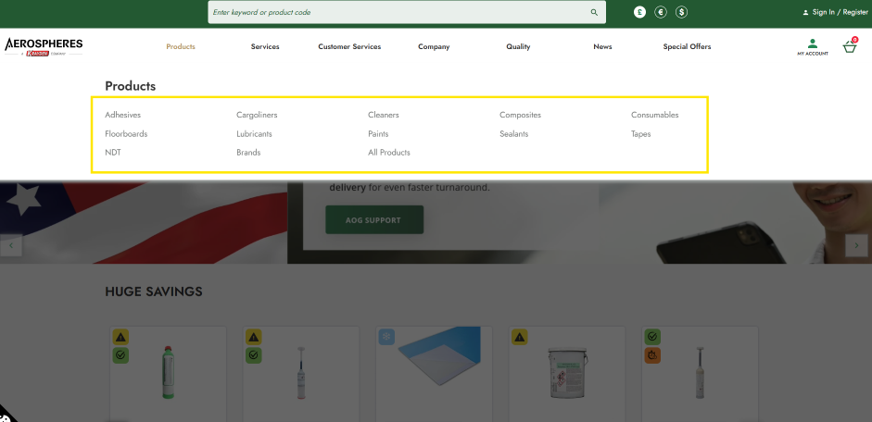
Depending on the product range, filters may include options such as manufacturer, product category, size, specification or other relevant attributes.
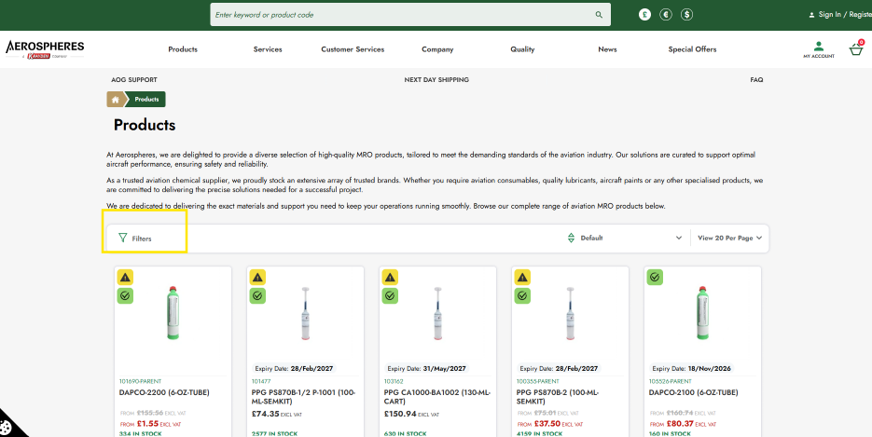
You can also use the Default option to organise the results, for example by expiry date, product name or other available sorting methods.
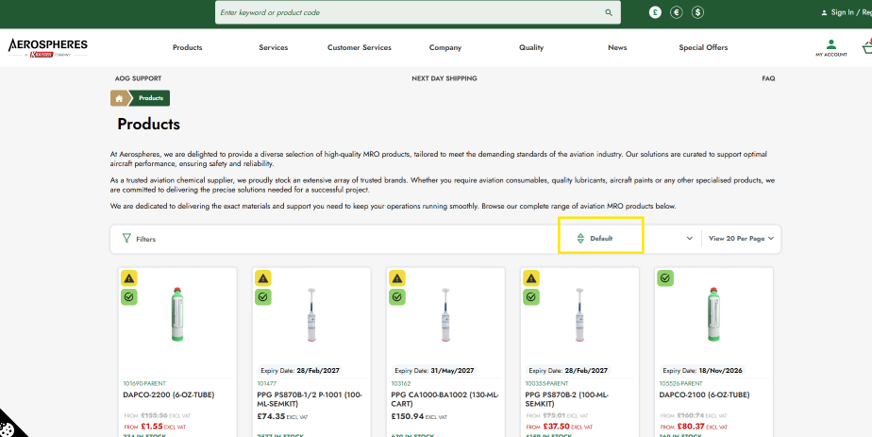
Applying filters and sorting options makes it easier to locate the exact product you require.
Special offers
Products currently included in a promotion can be found by selecting Special Offers from the website navigation menu.
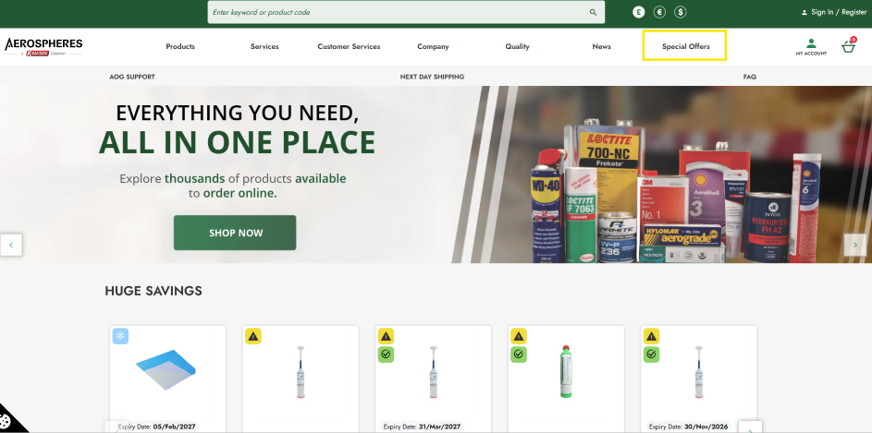
The Special Offers page displays products that are currently available at discounted prices or as part of a promotional campaign.
Select a product to view its Product Details page, where you can review the offer and add the item to your basket.
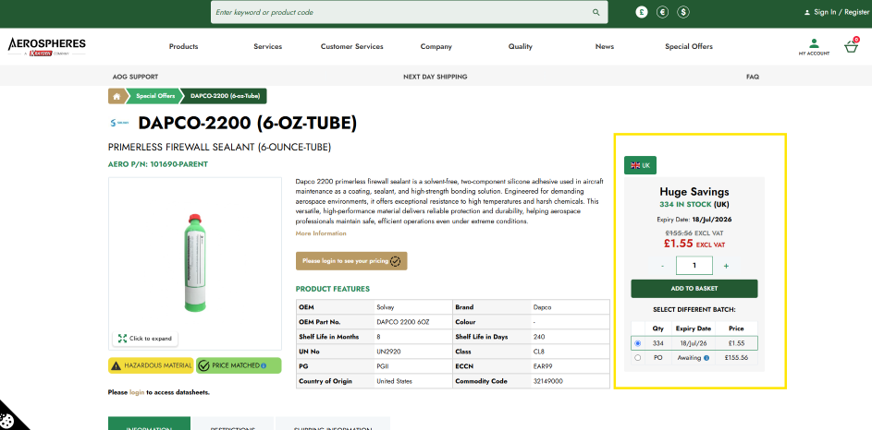
Please note: Special offers are available for a limited time and while stocks last.
Accessing Safety Data Sheets (SDS) and Technical Data Sheets (TDS)
Where available, Safety Data Sheets (SDS) and Technical Data Sheets (TDS) can be accessed from the Product Details page.
These documents provide important information relating to product safety, handling, storage, technical specifications and application guidance.
Please login to access the datasheets. Click the relevant document link to view or download the latest version.
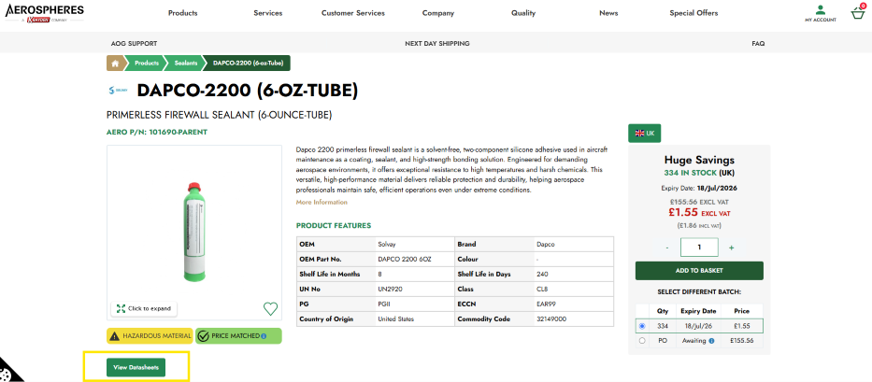
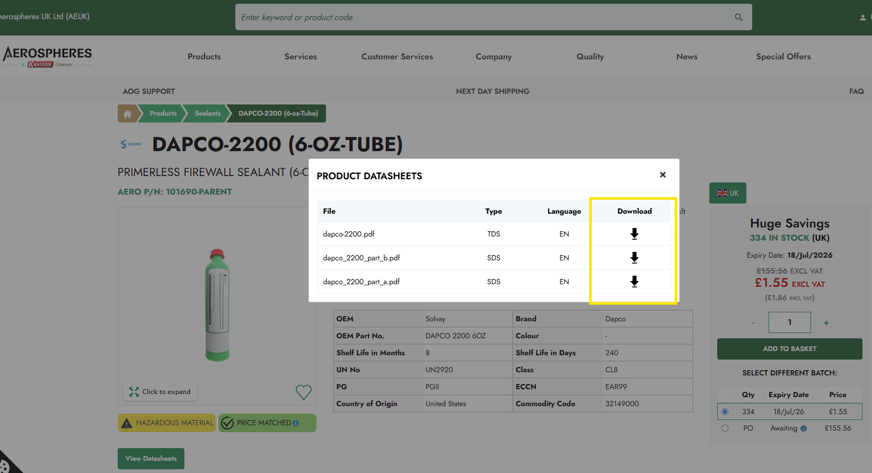
Please note: Not all products have SDS or TDS documents available.
Seeing your agreed pricing online
Once you have logged into your Aerospheres account, product prices will automatically display using your agreed customer pricing.
Pricing is shown throughout the website, including product listings, Product Details pages, your basket and during checkout.
Please note: Prices are only visible when you are logged into an approved customer account.
Finding details on stock availability
Stock availability is displayed on the Product Details page to help you understand whether an item is available to order.
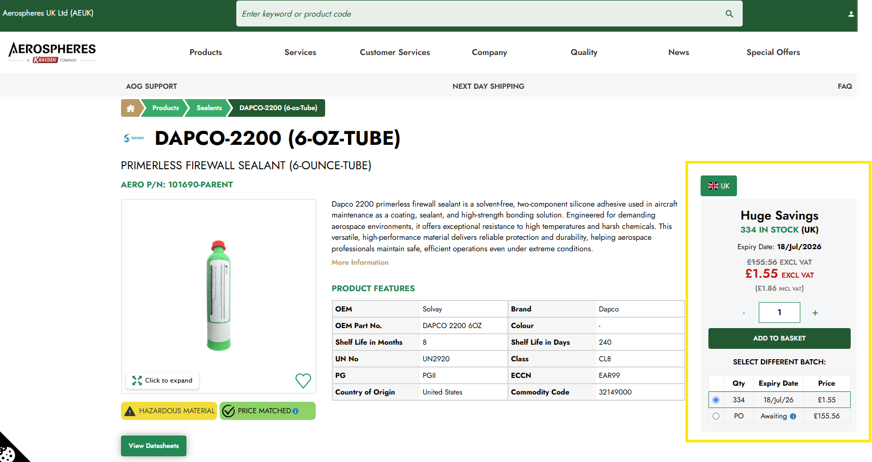
Where applicable, the website will indicate whether the product is in stock, available on request or subject to a lead time.
This information helps you make informed purchasing decisions before adding products to your basket.
Finding details about shelf life and expiry dates
For products where shelf life is applicable, the remaining shelf life information is displayed on the Product Details page.
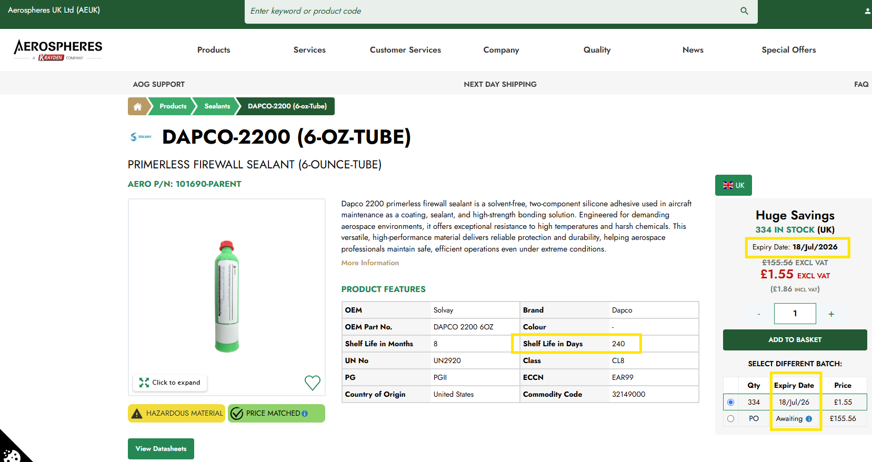
This allows you to confirm the available shelf life before placing your order.
Please note: Shelf life information is only displayed for applicable products and may vary depending on current stock.
Company switcher
If your user account is linked to more than one company, you can use the Company Switcher to change between accounts.
Select the required company from the Company Switcher, and the website will update to display the pricing, addresses and purchasing information associated with the selected company.
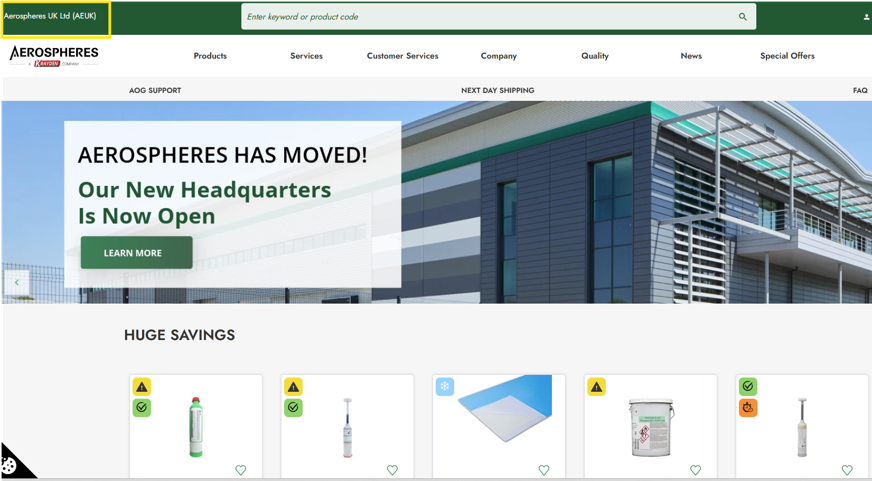
This allows authorised users to manage orders for multiple companies using a single website login.